
User Guide
For SnooCare Studio on iPad and Mac · September 2026
Everything the app does, in the order you meet it.
The five-minute start
Free plan, no account.
- Open SnooCare Studio with the camera high behind the baulk end.
- Tap Game settings and pick your camera under Source.
- Back on Home, tap Choose on each seat and pick a player.
- Tap START.
- Tap a ball key for each pot, and end turn when the break ends.
- Tap foul for a foul, then the ball involved.
- Optional, on Player: connect a TV and tap tv.
On Pro, calibrate next for automatic scoring.
What each plan unlocks
| Plan | Adds |
|---|---|
| Scorer, free | Scoring, stats, drills, marks, phone and watch remotes, frame videos, send to a coach. |
| Player, $7.99 | TV scoreboard and styles, VAR replays and clips, full-resolution recording, 50 GB cloud. |
| Pro, $14.99 | Automatic scoring, shot assist, Highlight Studio, drill authoring, live streams, 200 GB. |
| Coach, $24.99 | The coaching inbox and reviews, 500 GB. |
| Club, $39.99 | Replay to air, SRT and four streams, take-home codes, tournaments, SnooCam, 1 TB. |
Every paid plan starts with a 14-day free trial.
Set up
What you need
An iPad or a Mac and a camera; the rest is optional.
| Device | Minimum | Best |
|---|---|---|
| iPad | iPadOS 17, USB-C | M-series for automatic scoring. |
| Mac | macOS 14, Apple silicon | Any M-series Mac; no Intel. |
| iPhone | iOS 17 | SnooCare Phone. |
| Apple Watch | watchOS 10 | SnooCare Watch, on Wi-Fi. |
| TV | Any HDMI display | USB-C to HDMI, or AirPlay. |
- On an A-series iPad, avoid recording and streaming at once.
- A 4K camera needs a USB 3 port, as on iPad Pro and iPad Air.
- An hour of video takes about 2 GB at 1080p, 9 GB at 4K.
- Prefer a cable to the TV; AirPlay shares the camera's Wi-Fi.
Home
SnooCare Studio opens on Home, where every match starts.
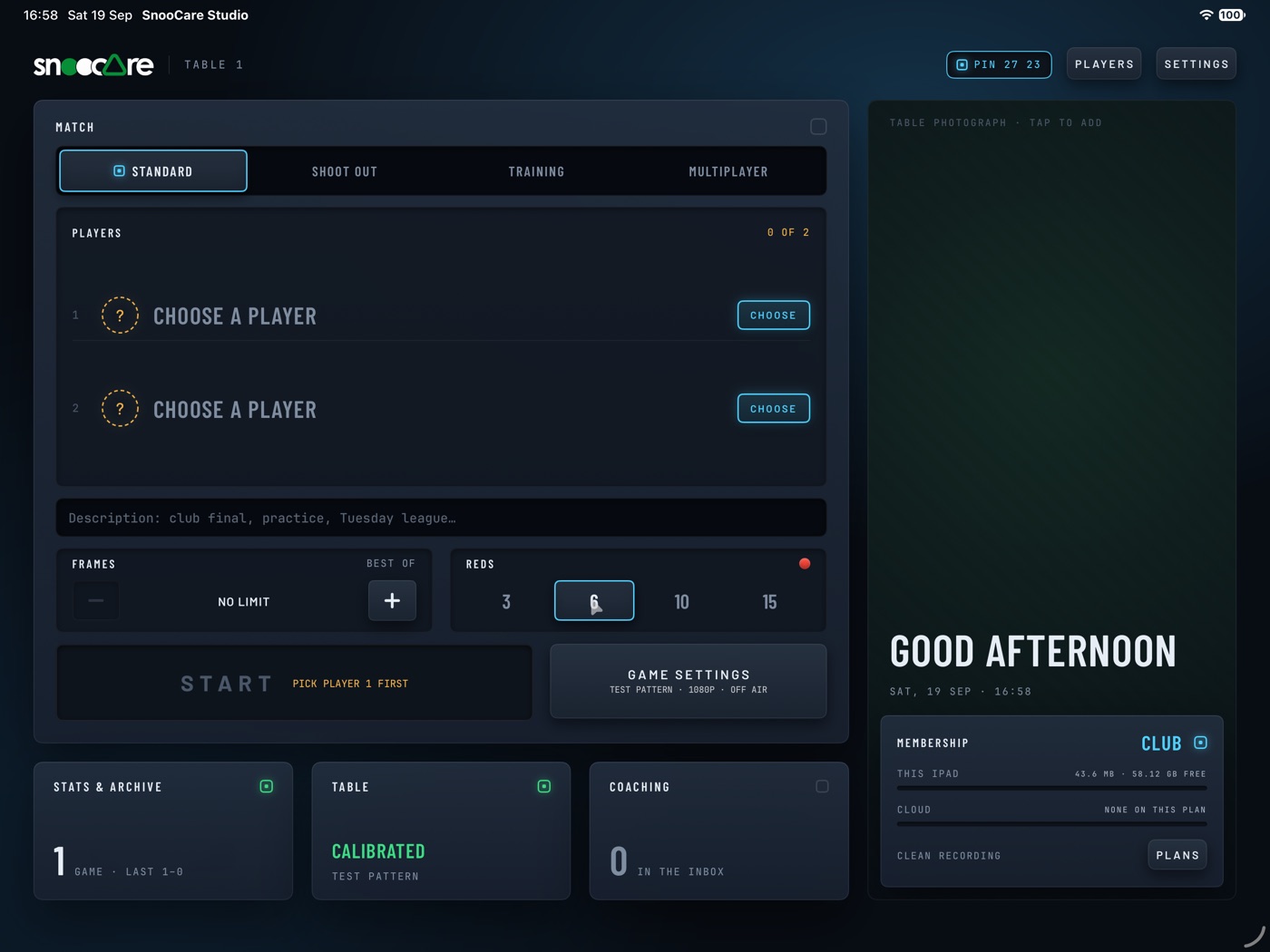
- The top bar holds the PIN for remotes, Players and Settings.
- Tap the photograph well to add a picture of your table.
- The tiles open Stats & archive, the Table settings and Coaching.
Account and plans
Scoring needs no account; sign in with Apple for the cloud, sharing or coaching.
- Plans on Home opens the Cloud screen: plan, storage and Coach code.
- Its Plans key lists the plans and starts a trial.
- Plans are bought and managed in the App Store.
Players
The roster keeps each player's stats across games.
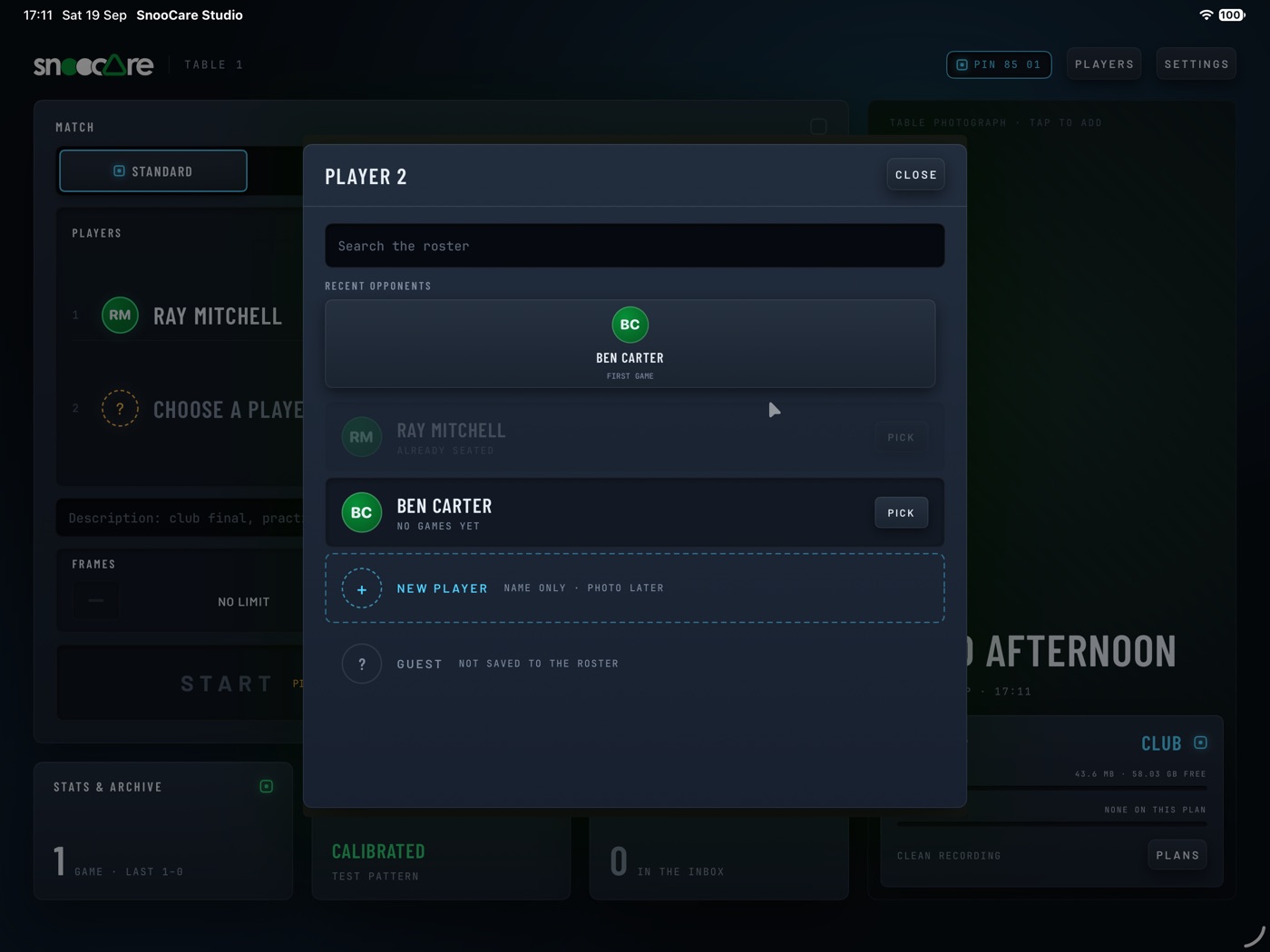
- Tap Players, then Add a player.
- On Home, Choose on a seat picks from the roster or recent opponents.
- NEW PLAYER adds a name to the roster on the spot.
- GUEST seats someone for tonight only, without a roster record.
Table and camera
A saved table holds its camera, calibration, graphics and scoreboard style.
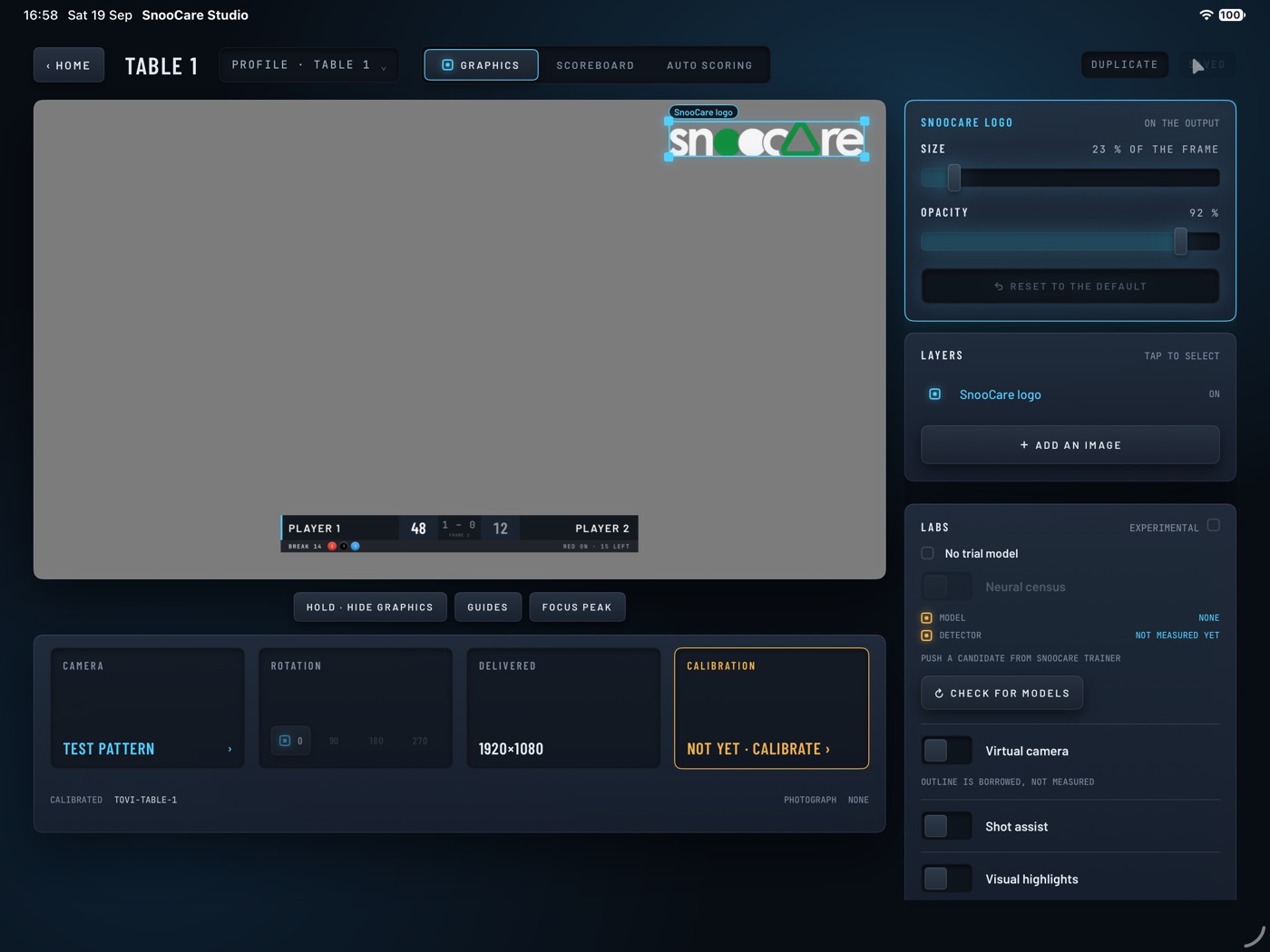
- Tap Settings on Home to open the table.
- The profile menu has New profile…, Rename…, Duplicate and Delete….
- Saved tables: Scorer 1, Player 2, Pro 3, Coach 5, Club unlimited.
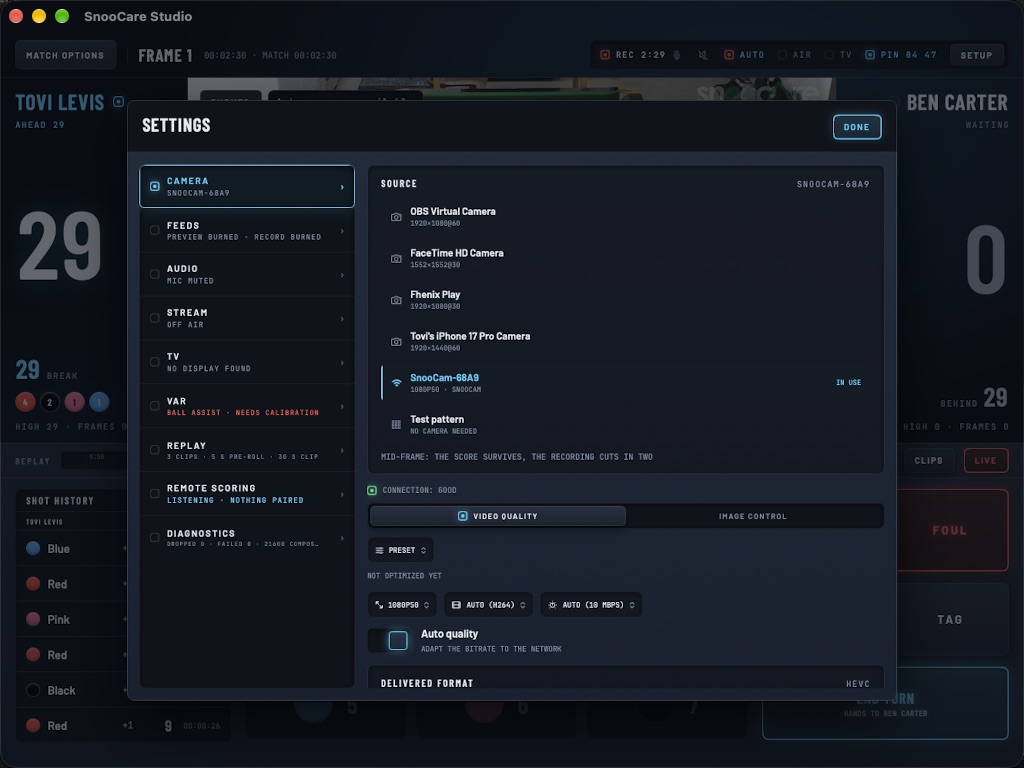
- The Camera card picks a built-in camera, a USB camera or SnooCam.
- Rotation turns the picture in quarter turns.
- guides draws framing lines; focus peak shows what is sharp.
- Tap Save when the picture is right.
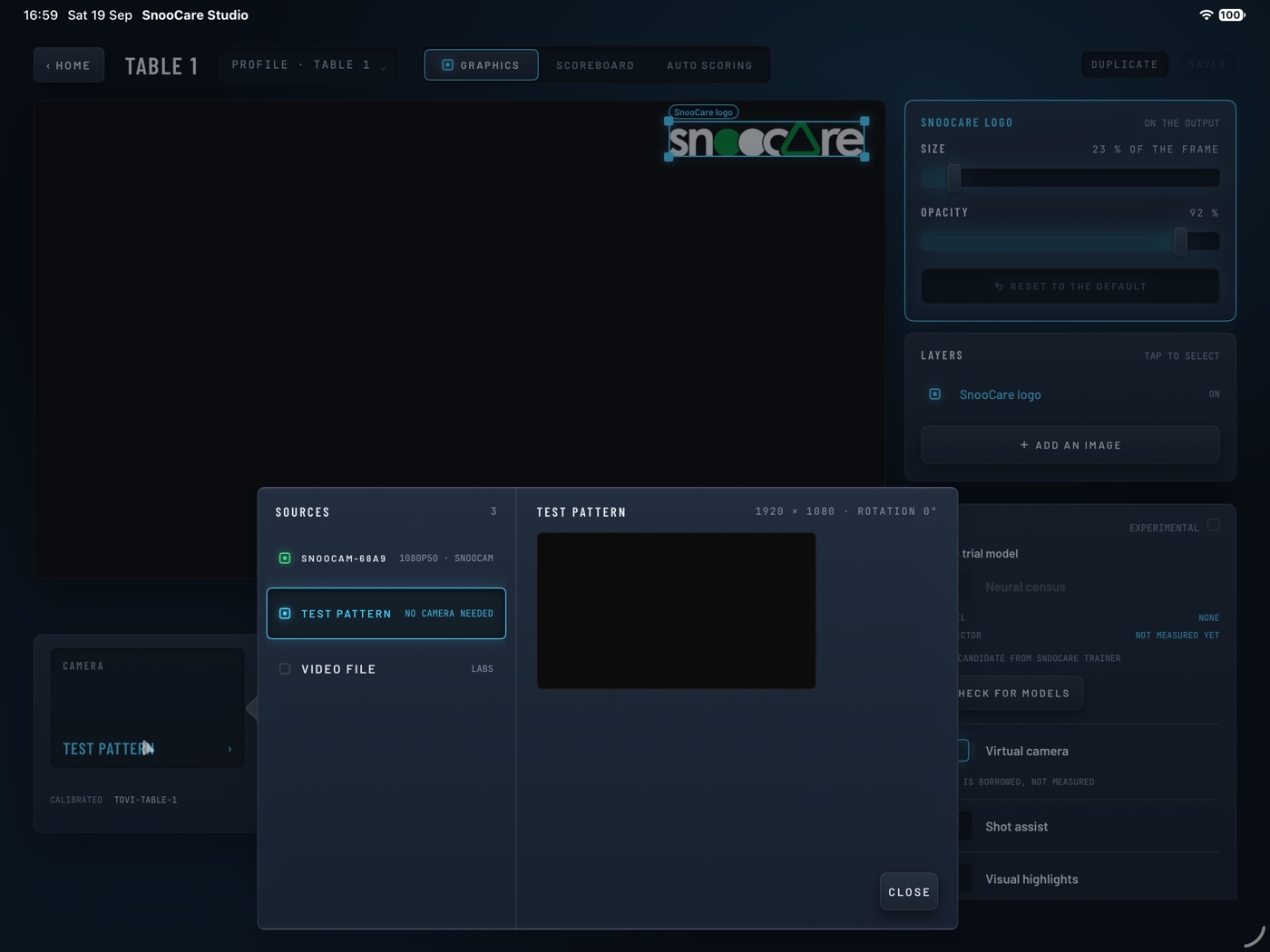
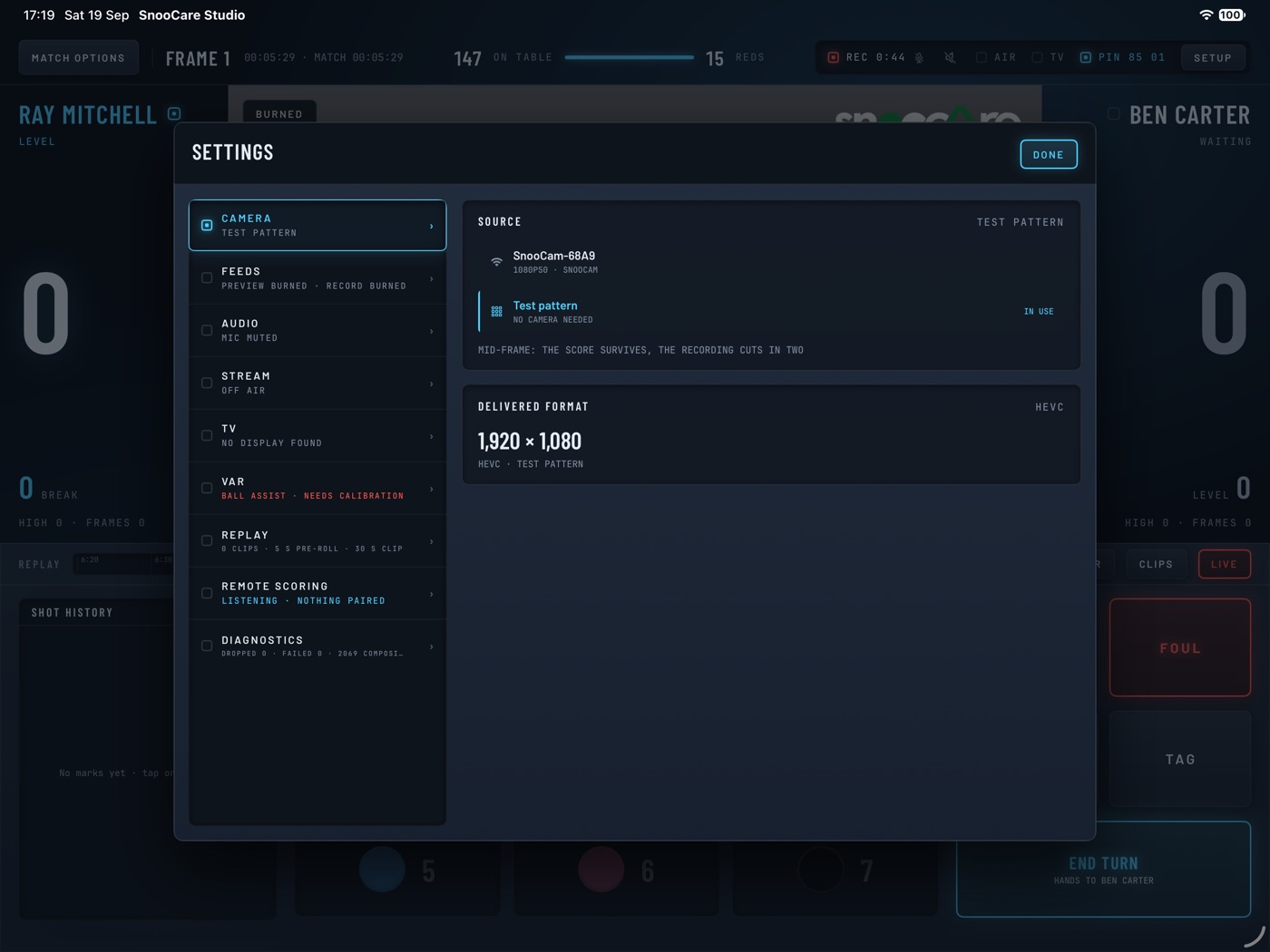
Frame all six pockets, with nothing over the cloth.
Calibration
Every plan · automatic scoring needs ProCalibration teaches the camera your table and balls under your light.
- Tap Calibrate the table in Game settings.
- Clear the cloth and tap find the table, then use it.
- If the outline is wrong, tap mark it by hand and drag the corners.
- Place a ball on every ring, then tap sample the balls.
- Green and yellow swapped? Tap swap green / yellow.
- Place the balls it asks for and tap find them; repeat a few times.
- Done when table outline, ball colors and verified are set.
A new cloth, lamp or camera position means calibrating again.
On a Mac
The Mac runs the same SnooCare Studio, and a second display shows the scoreboard.
Score a match
Start a match
The match panel on Home remembers your last format, reds and camera.
- Pick Standard, Shoot Out, Training or Multiplayer.
- Seat the players; the first seat breaks off.
- Set FRAMES to a best-of or no limit, and REDS to 3, 6, 10 or 15.
- Multiplayer also sets SETTLED BY.
- Add a description if you like, then tap START.
Game settings holds the per-game switches.
- Microphone records the room sound.
- Announce breaks speaks each break.
- Recording is always on: 1080p on Scorer, full resolution on paid plans.
- Stream this game goes on air at the start.
- Auto scoring is Off or Assist.
The scoring screen
The picture, the scores, the shot history and the keys.
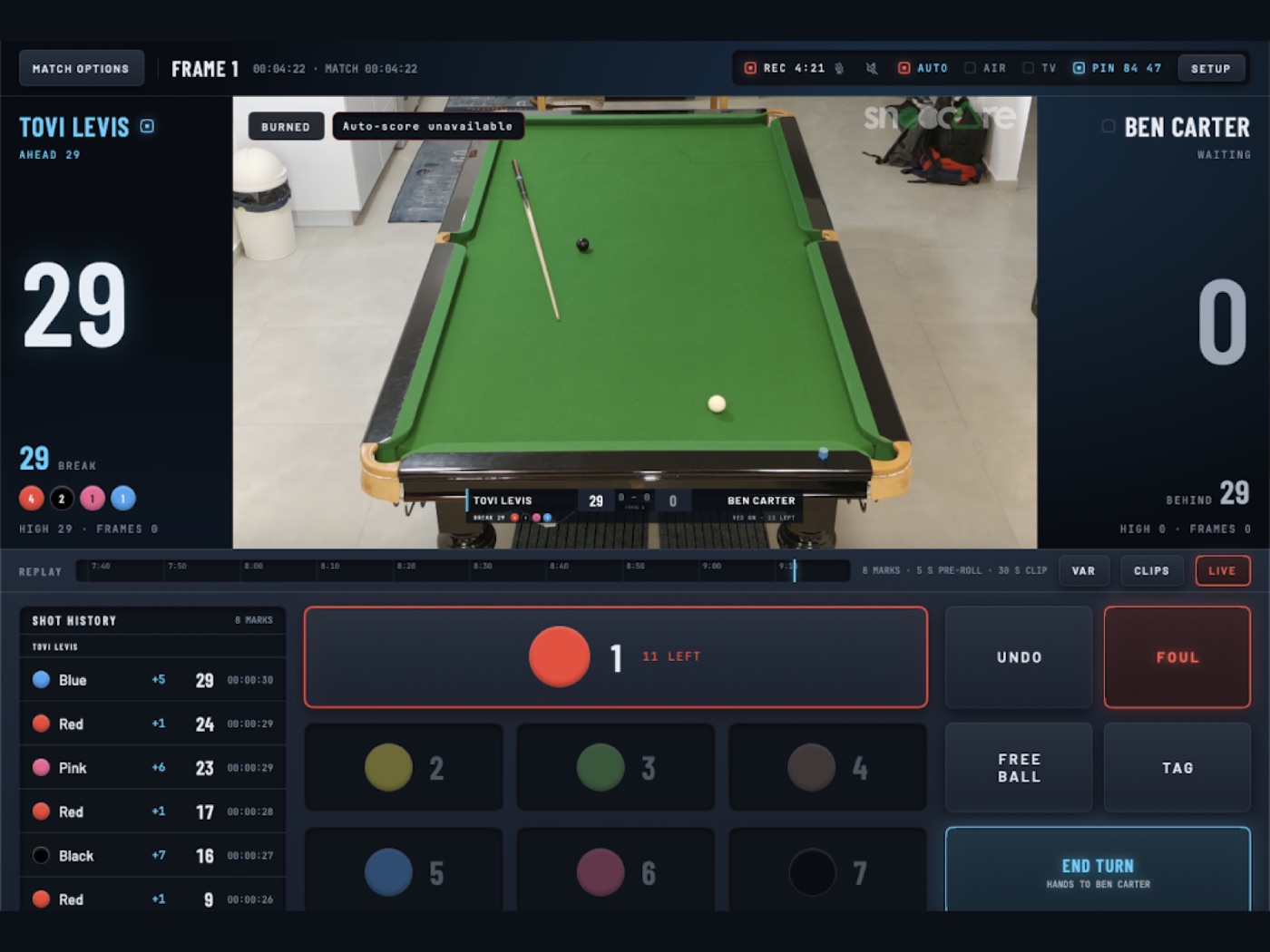
- Tap a ball key for a pot; each key shows how many are left.
- foul, then the ball, or award for no ball.
- free ball, then the color nominated.
- end turn hands over the table.
- undo takes back the last event, as often as needed.
- tag marks the moment as Tag, Wow, Miss or Custom.
- Tap the reds count to add or remove a red.
The top bar holds REC, the speaker, auto, air, tv, the PIN and setup.
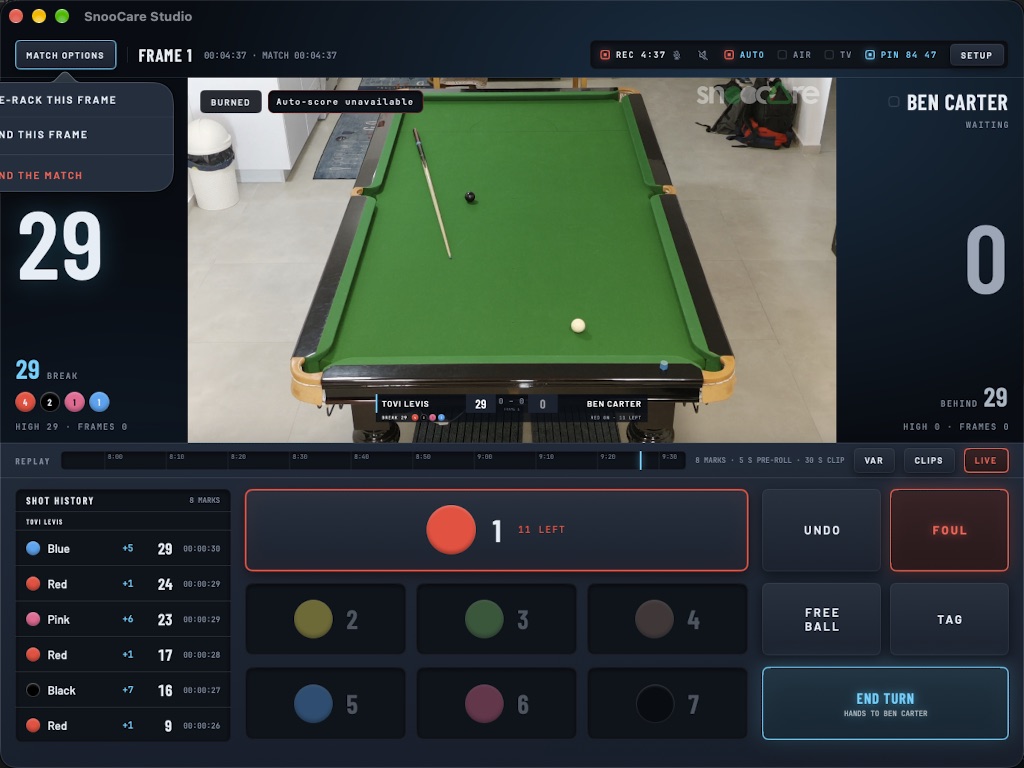
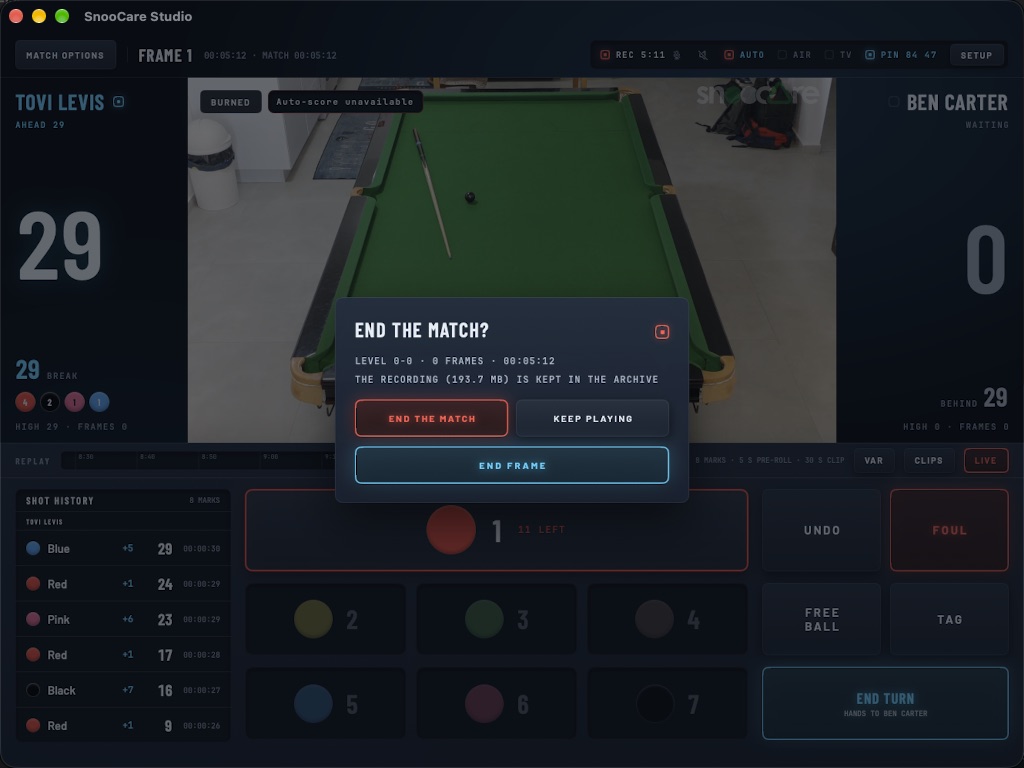
- match options can Re-rack this frame or Start the next frame.
- It also has Draw for the frame, End this frame and End the match.
- Ending the match files the game and its recording.
Automatic scoring
ProA neural detector scores every pot and foul.
- Calibrate the table, then pick Assist under Auto scoring in Game settings.
- Each call shows on a card with accept and dismiss.
- An unanswered card stands if the camera is sure, and drops if not.
- An automatic score shows undo for a moment.
- The chip on the picture reads Watching, Shot in play… or View blocked.
- Tap the chip to pause scoring or show the detection rings.
Shoot Out
Every planOne frame against the clock, under Shoot Out rules.
- The frame clock runs 10 minutes, also on the TV and recording.
- The shot clock is 15 seconds, then 10 in the last five minutes.
- With a calibrated camera, the shot clock runs itself; tap the bar to override.
- Ticks sound from five seconds, and a buzzer at zero.
- Fouls cost at least 5, with ball in hand; a tie goes to the blue.
Drills
Play on every plan, author on ProTraining runs solo routines and drills.
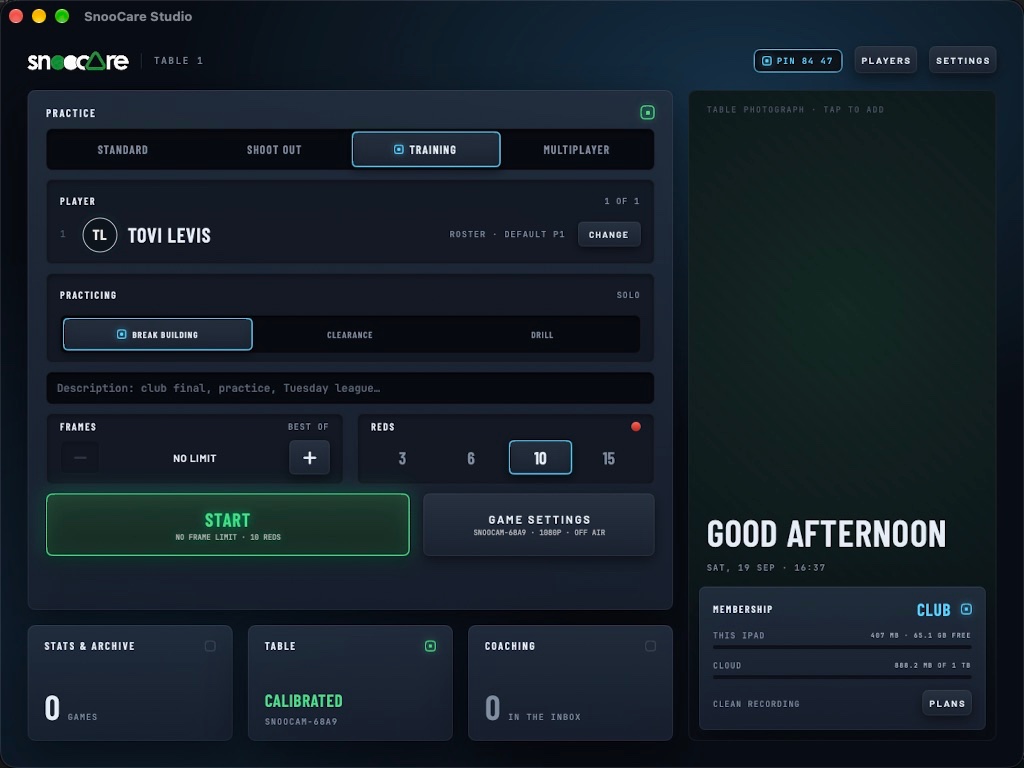
- Pick Training on Home, then a routine or drill.
- re-rack shows a ring per ball, filled in color once placed.
- missed logs a missed attempt; end break ends the break.
- MANAGE opens the drill library and starts new drills.
- In a drill, Duplicate makes an editable copy of a built-in one.
- Share .snoodrill sends a drill; Import .snoodrill brings one in.
SnooCare Phone
Every plan on the same Wi-Fi, away from the room on PlayerSnooCare Phone scores from your chair.
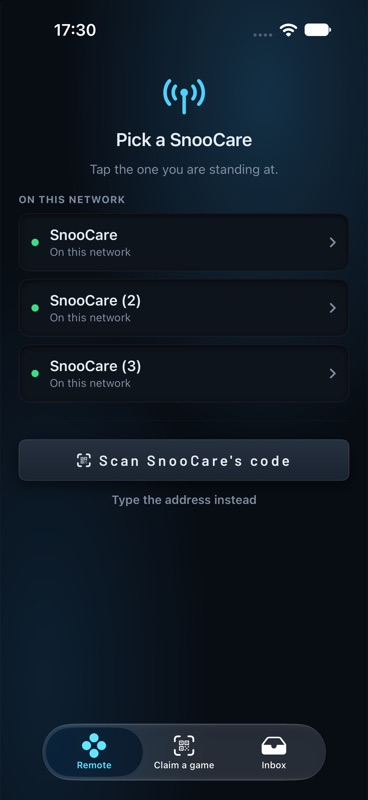
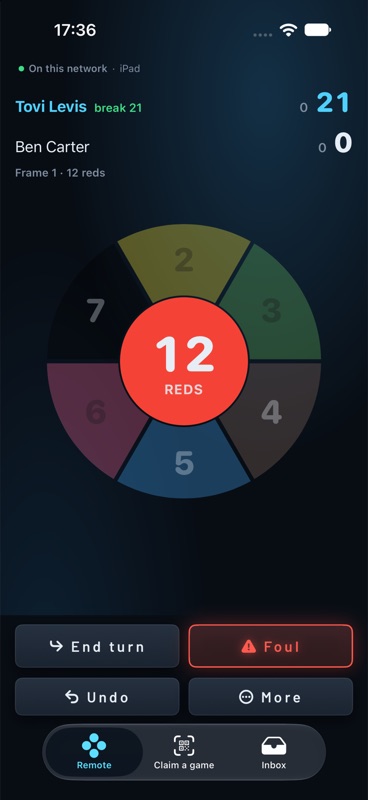
- On Home, tap the PIN and turn on Listening.
- On the iPhone, pick the table or tap Scan SnooCare's code.
- Enter the PIN and tap Pair.
- Score with the wheel, End turn and Undo.
- New PIN drops every paired device.
- On Player, score from anywhere in the setup sheet works off-site.
SnooCare Watch
SnooCare Watch installs with SnooCare Phone.
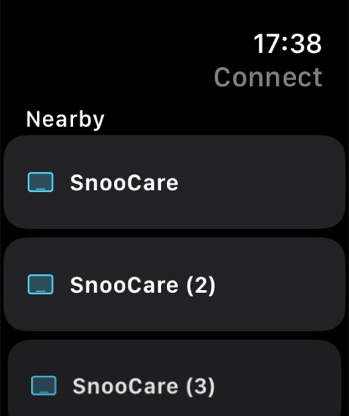
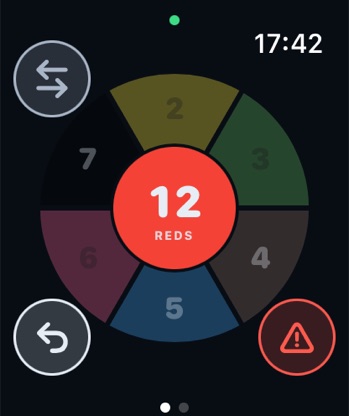
- Put the watch on the same Wi-Fi as the iPad.
- Pick the table under Nearby and enter the PIN with the crown.
- Tap a ball on the wheel to pot it.
- The Match screen has New Frame and Disconnect.
- Review freezes the last two minutes; Replay 30s cuts a clip.
Broadcast
TV scoreboard
PlayerA TV on HDMI, a USB-C to HDMI cable or AirPlay shows the scoreboard.
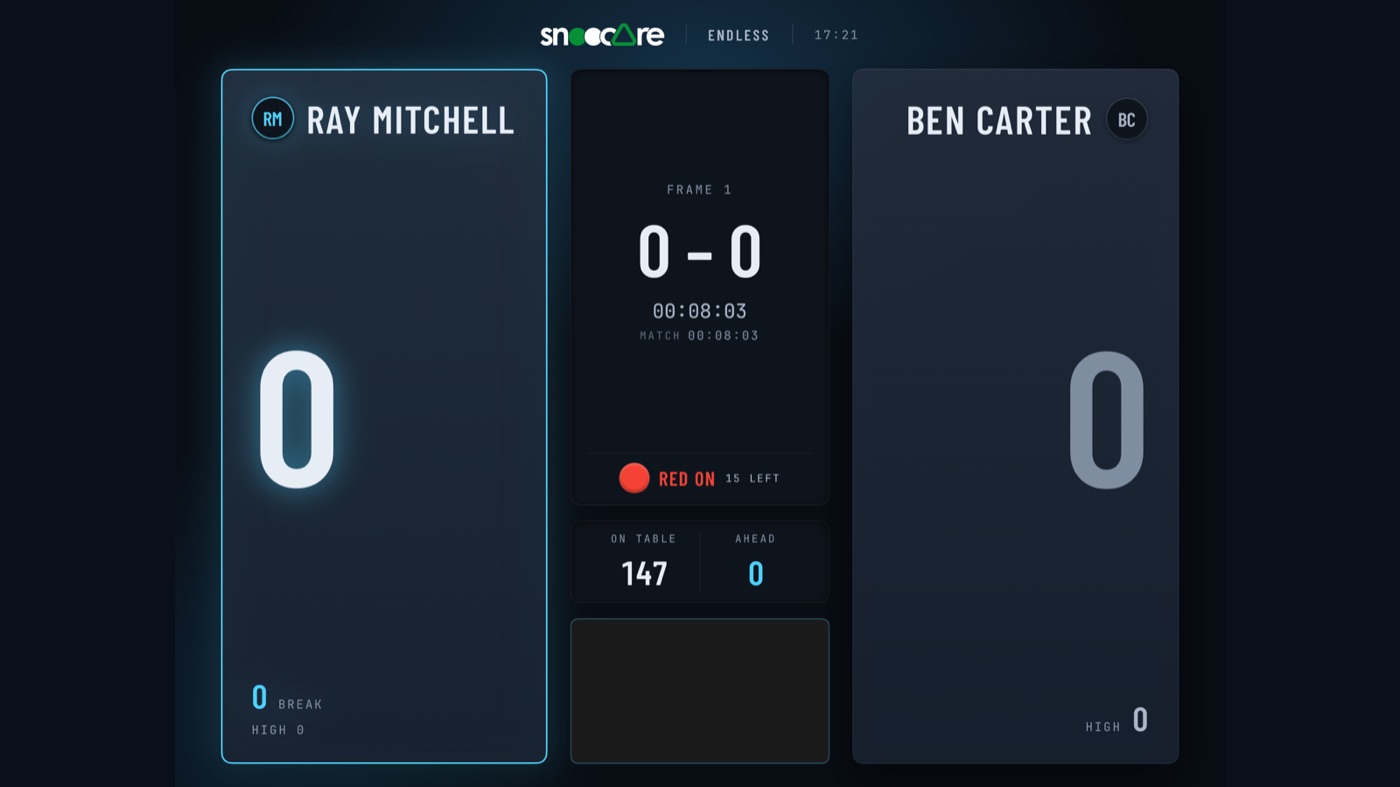
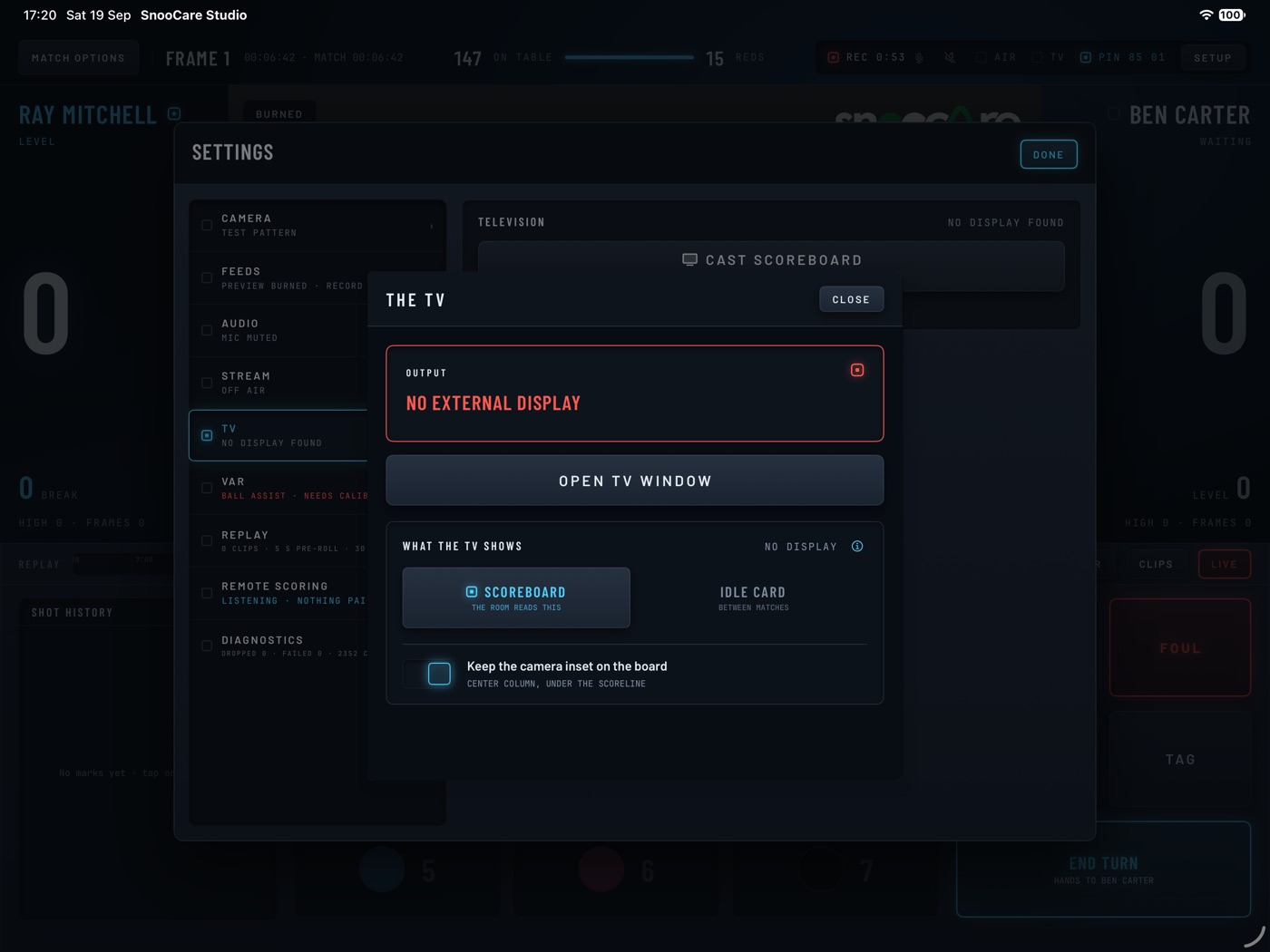
- Tap tv, then Cast scoreboard.
- What the TV shows: Scoreboard in play, Idle card between matches.
- Keep the camera inset on the board adds the picture.
- Open TV window puts the board in a window for a second screen.
Scoreboard style
PlayerThe Scoreboard tab styles the board in the recording and stream.
- Width, Inset from the top and Density set its size and place.
- Colors sets the board, plates, names, accent bar and text.
- reset to desk restores the SnooCare look.
- copy from table takes another table's style.
Table graphics
One graphic on Player, three on Pro and Coach, unlimited on ClubThe Graphics tab puts logos on the recording, stream and TV.
- add an image takes one from Photos or Files.
- Drag a graphic on the picture, then set Size and Opacity.
- Show in the output hides a graphic without deleting it.
- The SnooCare logo is on every plan; Player and above can move and resize it.
Replays and VAR
Marks on every plan, clips and VAR on Player, replay to air on ClubSnooCare Studio keeps the last two minutes for review.
- Tap var; the picture reads HELD while you scrub.
- The ghost slider lays the held frame over the live picture.
- referee keeps the review on the iPad; on air sends it to the TV.
- assist arrows each ball back to its spot.
- back live returns to the live picture.
Clips come from marks on the replay ruler.
- Tap a mark, or cut a clip in the clips panel, to play and share.
- Pre-roll and Clip length size each clip.
- On Club, ON AIR on a clip plays it to the TV and stream.
Shot assist
ProShot assist draws the cue line and the ball paths over the picture.
- Turn on Shot assist in the setup sheet, under VAR & AI.
- It needs a calibrated table and a detector model.
- Get the model with check for models on the table settings' AI panel.
Live streaming
Pro · SRT and four streams on ClubSnooCare Studio streams the picture and scoreboard; scoring never waits on it.
- Open Stream in Game settings or the setup sheet.
- Tap the destination; pick YouTube, Facebook or Twitch under Platform.
- Paste the Stream key from the platform's dashboard.
- Pick a Quality; it steps down under heat or a weak network.
- Tap GO ON AIR, or turn on Stream this game.
- Stream audio sends the microphone, or silence.
- On Club, add a custom address, SRT, and up to four streams.
After the match
Archive and stats
Every planStats & archive keeps every game with its recording, marks and shots.
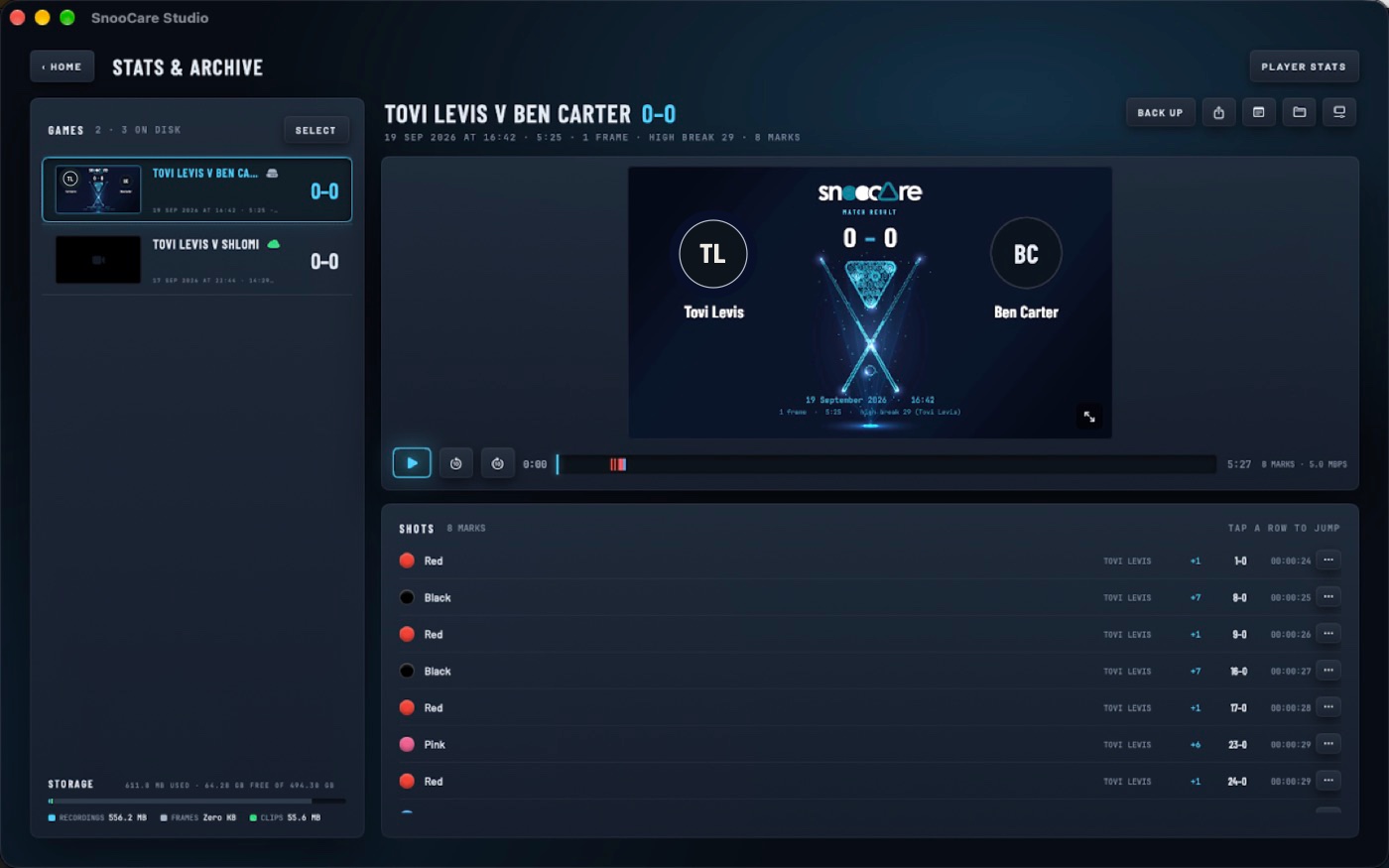
- Pick a game to see its shots and the video at each mark.
- The note icon adds a description.
- Under frame videos, Cut into frames makes one video per frame.
- player stats covers 30 days, the season or all time.
- Delete a game from this iPad, the cloud, or everywhere.
- select deletes several games from this iPad at once.
- The share icon holds Share to…, Send to coach and Take home.
- Allow to train on lends the game to SnooCare to improve ball detection.
Highlight Studio
ProHighlight Studio turns a game into a finished clip.
- Open a recorded game and tap the Highlight Studio icon.
- Drag the handles on the SHOT row to trim.
- Auto sections makes a section per pot, or tap add section.
- Under effects, pause, tap a ball, and pick light, smoke, fire or path.
- Slow motion stretches the shot.
- annotate draws on the picture; voice records commentary.
- save keeps the project; render makes a landscape or portrait clip.
Cloud
Player and aboveUploaded videos and your profile go to your own EU cloud space.
- Automatic video upload and Upload at game end send each game.
- Upload window limits uploads to set hours.
- Upload speed limit spares the club Wi-Fi.
- Games read On cloud + iPad or On cloud only.
- Bring back restores a game to the device.
- A share link plays for anyone, without an account, for seven days.
- Tables, scoreboard styles and the roster back up too.
- After a plan lapses, files stay downloadable for 30 days, with two warning emails.
- Delete the account erases everything; export from the portal first.
Coaching
Sending is free, the inbox is CoachA player sends a game, and the coach sends a review back.
- The coach shares the code from Coaching, or show qr.
- The player opens a game and taps Send to coach.
- The player enters the code and taps Send.
- annotate opens the game in Highlight Studio.
- The review reaches the player's inbox, with a link to copy.
Club games
Club issues, any player claimsA club lets a player take home a frame they played.
- In the archive, tap Take home, then make a code.
- The player scans the QR, or uses Claim a game in SnooCare Phone.
- Take the stats card is free.
- The video costs $0.99 once, free on a paid plan, and stays 30 days.
- An unclaimed game expires after seven days.
Member portal
Sign in at snoocare.com with the same Apple ID.
- Archive lists your cloud games to download, share or delete.
- Coaching shows your inbox and sends a game to a coach code.
- Club shows which tables are live.
- Tournaments lists the ones you organize, referee or play in.
- Account exports everything, or deletes the account.
Tournaments
Create a tournament
Club organizes, anyone playsA club runs its tournament from the member portal at snoocare.com.
- Sign in, open Tournaments and tap New tournament.
- Basics takes Name, Club, Starts, Ends and Tables.
- Under Format, pick Groups + knockout or Knockout only.
- Set Groups, Go through, each stage's Best of, and Reds.
- Ties split by applies tie-breaks in the order you tap them.
- Tap Next to save the draft, then add players.
- Under Checks, Players confirm their results starts on.
- Approve clean matches without a referee starts off.
- On Publish, pick Seeded or Random under Draw.
- Tap Draw groups or Draw bracket.
- A draw takes 2 to 128 players, and fixes the format.
- Seeded seeds players in the order they entered.
- After the draw, Matches sets each match's table and time.
- Cancel tournament on Publish closes its page and links.
Invite players
Players join from a link, with no app and no plan.
- On Players, copy the Invite link and share it.
- The player opens it and signs in.
- They type their Name on the board and tap Join.
- The link takes new players until the draw.
- Each row shows how the player signed in.
- Marks read Joined, Invite sent, No contact or Withdrawn.
- Remove takes a player off before the draw.
- After the draw, Withdraw hands their unplayed matches to their opponents.
- Under Referees, Invite referee mails a link to the Email given.
- Without an email, hand over the link with Copy link.
- Referees review matches; only the organizer edits the tournament.
Players without an Apple account
Nobody needs an Apple account to play.
- Email me a code sends a six-digit code to any address.
- Type the code, add the name, and tap Join.
- A code works for 10 minutes; one new code per minute.
- Five wrong tries end a code; send another.
- Continue with Google works too, where it shows.
- The portal's own sign-in page offers the same code.
The organizer can also put a name on the board.
- On Players, type a Name and tap Add player.
- Add their Email, and SnooCare mails them their own link.
- Or hand that link over yourself with Copy link.
- Opening it puts the player on that name.
Until then, the club confirms that player's results with Confirm for them.
Play a tournament match
SnooCare Studio scores it, signed in to the organizer's Club account.
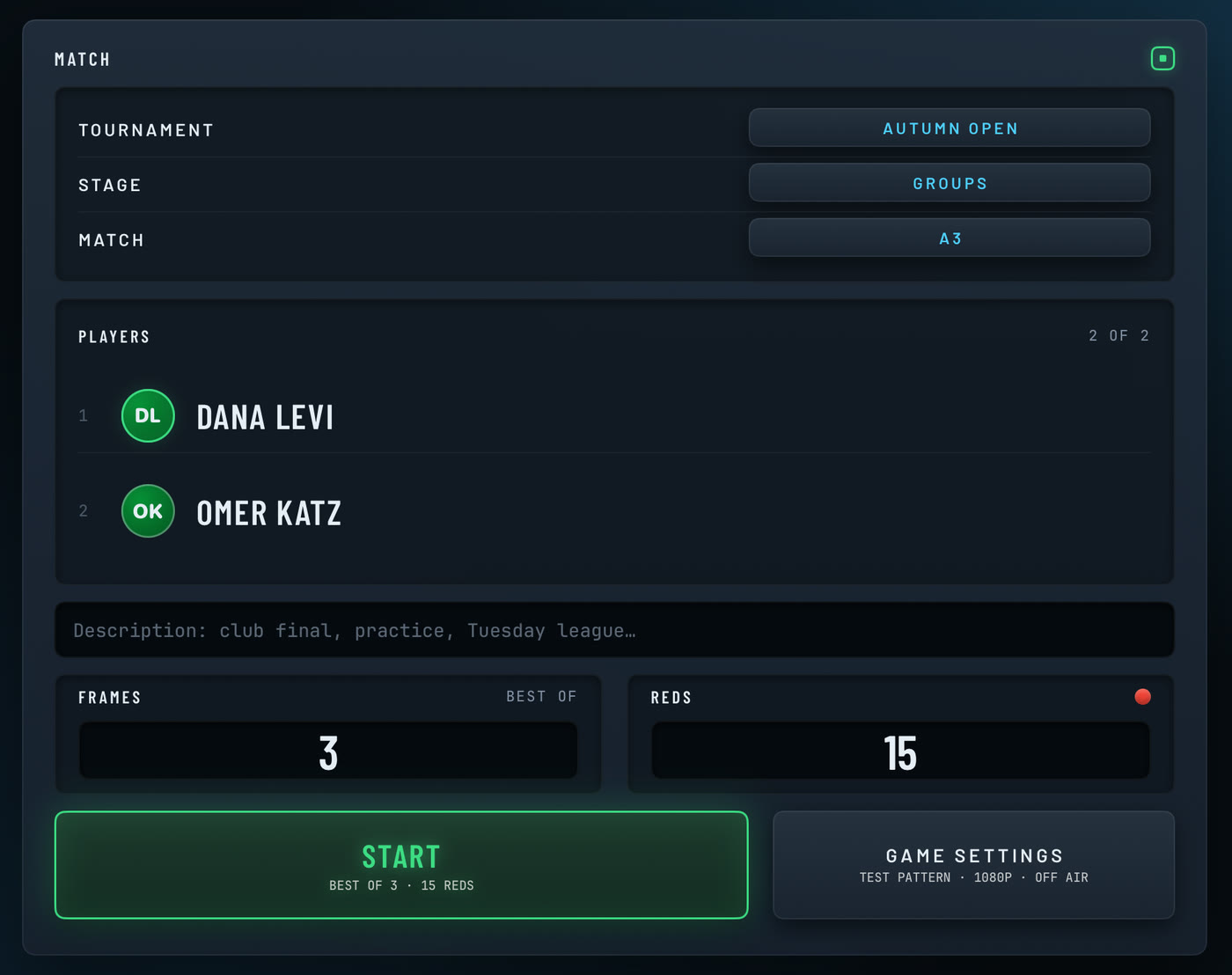
- On Home, the Tournament row appears once a match is ready.
- Pick the Tournament, then the Stage and the Match.
- The players, FRAMES and REDS fill in and lock.
- Tap START; the public page shows the score live.
- Score as usual, then End the match.
- The same rows sit in Game settings.
- None under Tournament hands the form back.
- A tournament match is standard snooker for two players.
- Recording runs to the end; no key or remote stops it.
- Calibrate the table first, so the camera can vouch for each pot.
- The game and its video upload at once, outside the Upload window.
- Home reads Sending tournament match, then Tournament match sent.
- Tournament match waiting to send retries by itself, after a relaunch too.
- Started on another iPad? Home reads This match is live on another table.
- No network or wrong account? Home reads Could not reach SnooCare.
Confirm your result
Each player confirms the score in the portal after the match.
- Open the tournament's page and tap Sign in.
- Under Your match ended, tap Confirm result.
- Check the score and the frames; Watch plays the video.
- Tap Confirm result if it is right.
- If not, tap Dispute a frame and pick the frame.
- Add a Note if you like, then tap Dispute.
- In the portal, Tournaments lists yours under Playing.
- A result waiting for you reads 1 to confirm.
- A dispute turns the match red until a referee decides.
Review and approve
SnooCare checks each result; the organizer and referees decide what it flags.
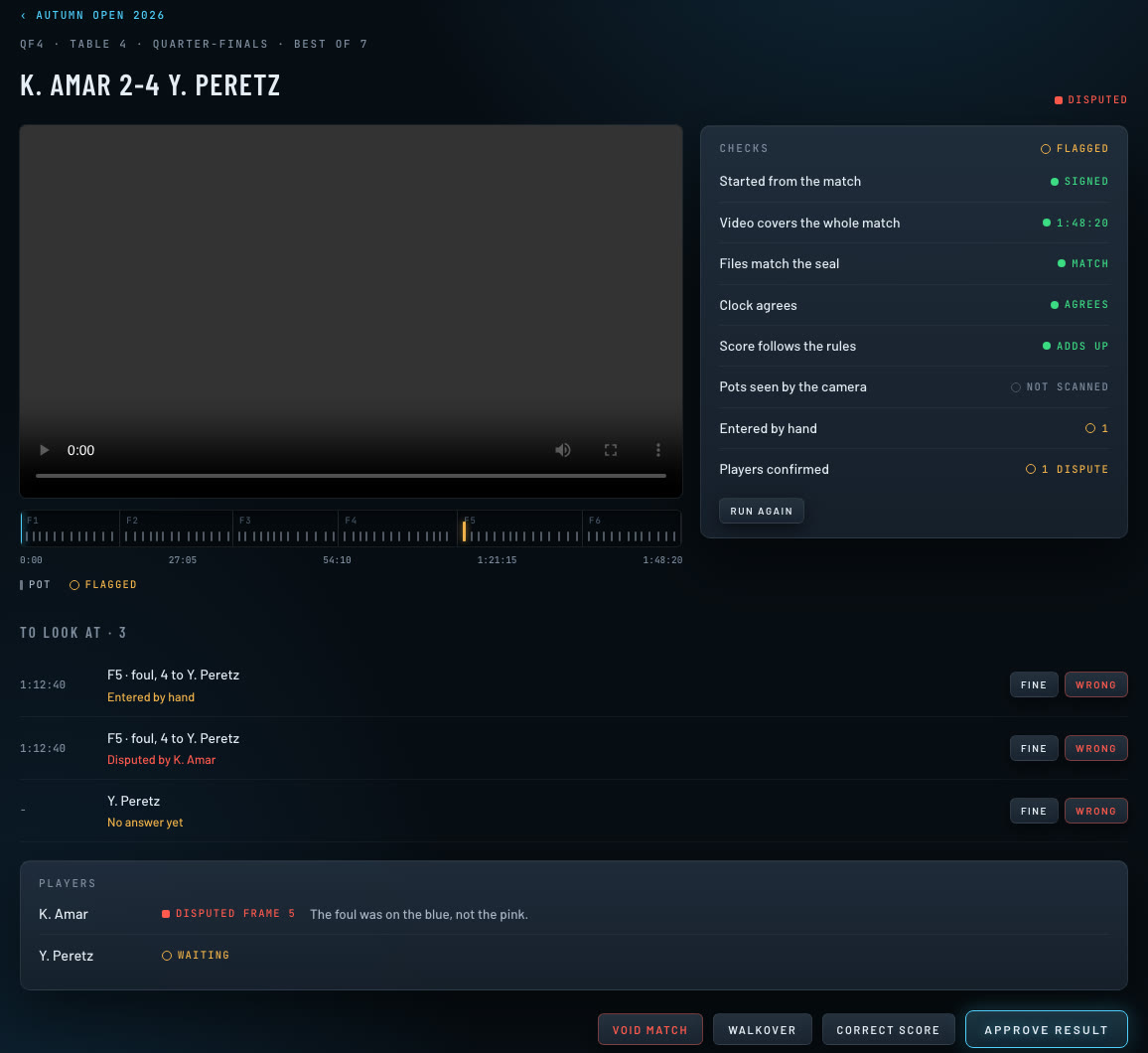
- On the tournament, Review lists every match waiting, disputes first.
- Tap Review on a match.
- Checks reads Clean, Flagged or Blocked.
- Under To look at, tap a time to play from there.
- Mark each flag Fine or Wrong.
- Tap Approve result; the group tables and the bracket move on.
| Check | What it catches |
|---|---|
| Started from the match | Blocks another match's game, or a broken signature. |
| Video covers the whole match | Blocks a missing or stopped recording, or shots outside it. |
| Files match the seal | Blocks files that changed after the match. |
| Clock agrees | Flags a video or game longer than the match was open. |
| Score follows the rules | Blocks a score the shots do not add up to. |
| Pots seen by the camera | Flags each pot the camera missed; Not scanned without calibration. |
| Entered by hand | Flags each foul, free ball, re-rack, concession and undo. |
| Players confirmed | Flags a missing answer, or a dispute. |
- A blocked check or a Wrong flag holds Approve result.
- Correct score sets the frames by hand, with a Note.
- Run again repeats every check on the sealed files.
- Only the organizer has Void match, Walkover and Enter result.
- Void match discards the game so the match can be replayed.
- Enter result records a match played without SnooCare Studio.
- Confirm for them answers for a player the club added by name.
- Approve clean matches without a referee lets a clean match verify itself.
The public page
Every tournament has a page anyone can open, with no account.
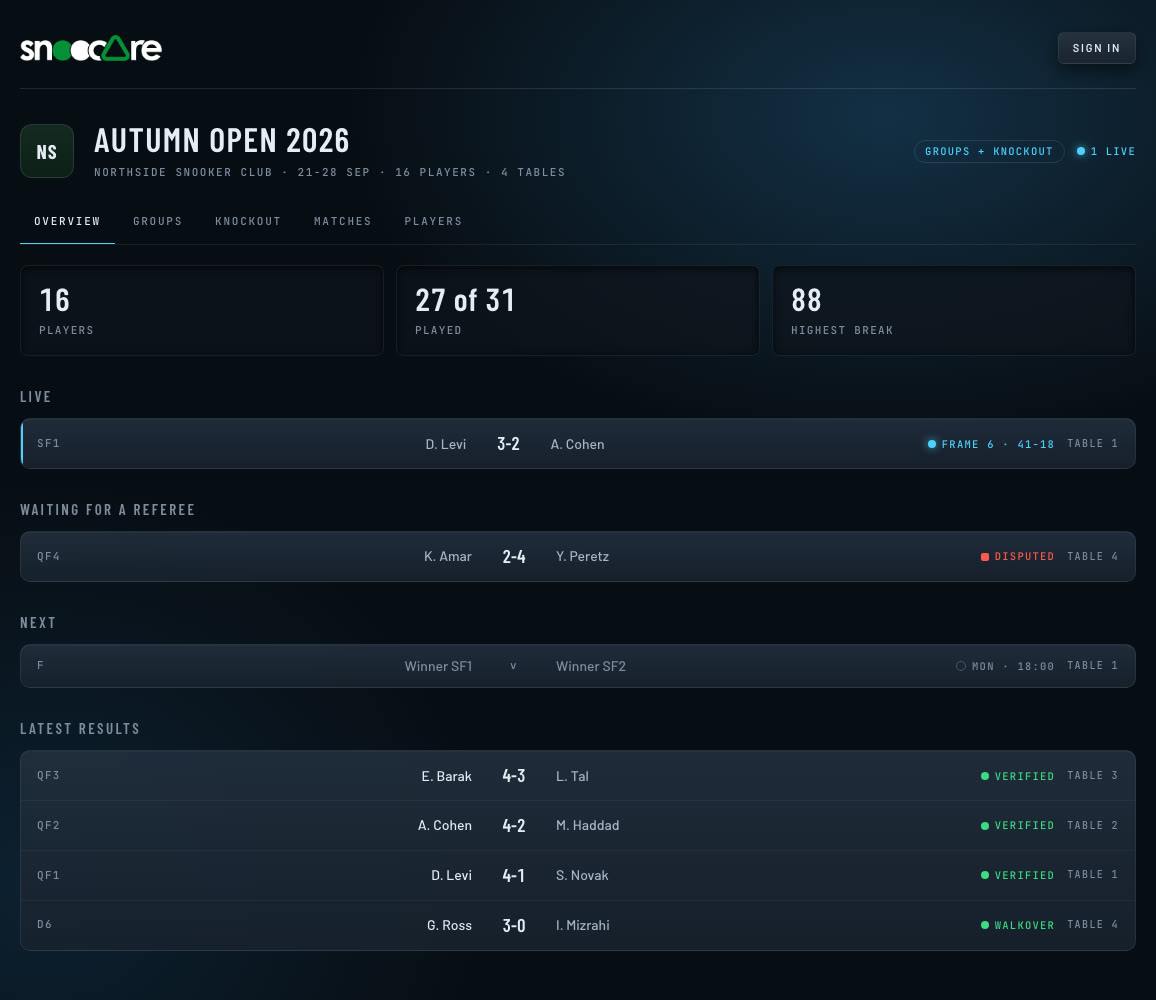
- Public page on the organizer's page opens it; share its address.
- Tabs: Overview, Groups, Knockout, Matches and Players.
- A live match shows its frame and score, refreshed every 15 seconds.
- Marks read Verified, In review, Disputed, Walkover, or the time.
- Only verified results and walkovers count in the tables and bracket.
- Knockout seats fill once every group is complete.
- A signed-in player sees their own match at the top.
- Once the final is decided, the page names the Winner.
- It shows names, scores and breaks, never emails or invite links.
- A canceled tournament's page and links stop working.
SnooCam
What it is
$0.99 a month on any plan, included on ClubSnooCam turns a small computer and a USB camera into a network camera.
- SnooCare Studio finds it on your network and pairs with a code.
- Without the add-on, picking the box opens the plans.
Boards and cameras
| Board | Image | Verdict |
|---|---|---|
| Intel or AMD mini PC with UEFI (N100, N5095, J4125) | amd64 | Best choice. Up to 4K30. |
| Raspberry Pi 3B, 3B+ or 4 | pi64 | 1080p. The mini PC is the safer pick. |
| Raspberry Pi 5 | none | Not supported. |
| Camera | Verdict |
|---|---|
| YoloLiv YoloCam S3 | Best choice. |
| HDMI camera on a USB 3 H.264 capture card | Good, on a mini PC. |
| Any UVC webcam with MJPEG at 1080p30 | Works. |
| A webcam with only raw video at 1080p | Avoid. |
| A 4K camera on a USB 2 port | Avoid. |
- A camera that encodes H.264 itself is best.
- Pick 1080p30 for scoring; 60 fps only smooths replays.
- Prefer a camera with manual exposure.
- Past 3 m, use an active USB 3 cable.
- You need a USB key or SD card of 8 GB.
Placement and light
- Mount it high behind the baulk end, all six pockets in view.
- Turn the match lights on before calibrating; avoid lamp reflections.
- A moved camera only needs its outline approved again.
Download and install
Version 0.3.0. Pick the file for your board: the .img.xz for a writing tool, or the .zip to copy by hand.
| Board | Write with a tool | Copy by hand |
|---|---|---|
| Intel or AMD mini PC | amd64 .img.xz, 479 MB | amd64 .zip, 493 MB |
| Raspberry Pi 3B, 3B+ or 4 | pi64 .img.xz, 325 MB | pi64 .zip, 337 MB |
To check a download, compare its SHA-256 with SHA256SUMS: shasum -a 256 and the file name on a Mac, certutil -hashfile, the file name and SHA256 on Windows.
Intel or AMD, with Etcher
- Download the .img.xz. Leave it packed; Etcher reads it as it is.
- In Balena Etcher, choose Flash from file and pick the .img.xz.
- Choose the USB key and Flash. This erases the key.
Intel or AMD, from the zip
- Format the key. On a Mac: Disk Utility, View > Show All Devices, select the key, Erase, name SNOOCAM, format MS-DOS (FAT), scheme Master Boot Record.
- On Windows: right-click the key, Format, file system FAT32, label SNOOCAM. A key over 32 GB needs Rufus, or the .img.xz.
- Extract the zip: double-click it on a Mac, Extract All on Windows.
- Copy EFI, live, snoocam and VERSION to the top of the key, not inside a folder.
- Eject the key.
Raspberry Pi, SD card
- Download the pi64 .img.xz. Leave it packed.
- In Raspberry Pi Imager, choose Use custom and pick the .img.xz.
- Choose the card, answer No to customization and write it.
The zip also works on a card formatted FAT32 with the SD Association's SD Memory Card Formatter; copy its contents to the top of the card.
First boot
- Plug in the key or card, the camera and any Ethernet, then power on.
- On a mini PC, pick the UEFI: entry in the boot menu.
- After a minute, an HDMI screen shows Connecting, then Ready.
The box is named snoocam-XXXX, after its wired address.
On a cable
Open http://snoocam-XXXX.local:8443 for its name and pairing code.
On Wi-Fi only
- Join the open Wi-Fi SnooCam-XXXX from the iPad.
- The setup page opens; if not, open http://10.42.0.1/setup.
- Under Network, pick your Wi-Fi, enter the password and tap Join.
- Under Name and code, name it and note the code.
- New code or Set my own changes the code.
- Tap Finish; the box joins your network.
The pairing code never appears on the HDMI screen.
Pair with SnooCare Studio
- Put the iPad on the same network as the box.
- In the table settings, tap the Camera card and find the box under Sources.
- A box marked Needs setup has open setup for its page.
- Tap the box and enter the pairing code once.
- Set the Rotation, then calibrate as for any camera.
One viewer at a time: a second iPad takes the camera from the first.
On the network
Wi-Fi is the weak link; keep it short.
- Cable the box to the router.
- Put the iPad on 5 GHz, in the same room as the access point.
- Use one access point near the table, not a mesh repeater.
- Avoid guest networks; they hide the box and remotes.
- Connect the TV by cable, so the Wi-Fi carries only the camera.
- Allow Local Network access on every device when asked.
- On Wi-Fi, pick Most reliable quality.
Picture controls
The camera settings show what your camera offers.
- White balance is Auto, Lock or Manual.
- Cloth looks yellow or blue? Tap re-balance now, then Lock.
- Exposure, Focus and Zoom appear when the camera has them.
- reset picture returns the camera's sliders to its defaults.
- Auto quality adapts; presets are Sharpest, Balanced and Most reliable.
- The plate reads Connection: good, struggling or failing.
The box's page
The page at http://snoocam-XXXX.local:8443 asks for the pairing code.
- It shows Stream, Network, Camera and Version.
- Set up changes the network, the name or the code.
- Restart reboots the box.
- Diagnostics makes a report for support; not during a match.
- Install to this computer copies it to a mini PC's disk.
Updates
- Installed mini PC: boot the new key, tap Install to this computer.
- Pull the key and tap Restart; settings carry over.
- Key or card: write the new image and set the name and code again.
Trouble
- The box is not listed. Put the iPad and the box on the same network.
- No setup page on the hotspot. Open http://10.42.0.1/setup by hand.
- Wi-Fi join fails. Check the password.
- The picture stutters. Use a cable, or 5 GHz near the router.
- The cloth looks off-color. Tap re-balance now, then Lock.
- Lost the code. It is in snoocam/config.json on the key.